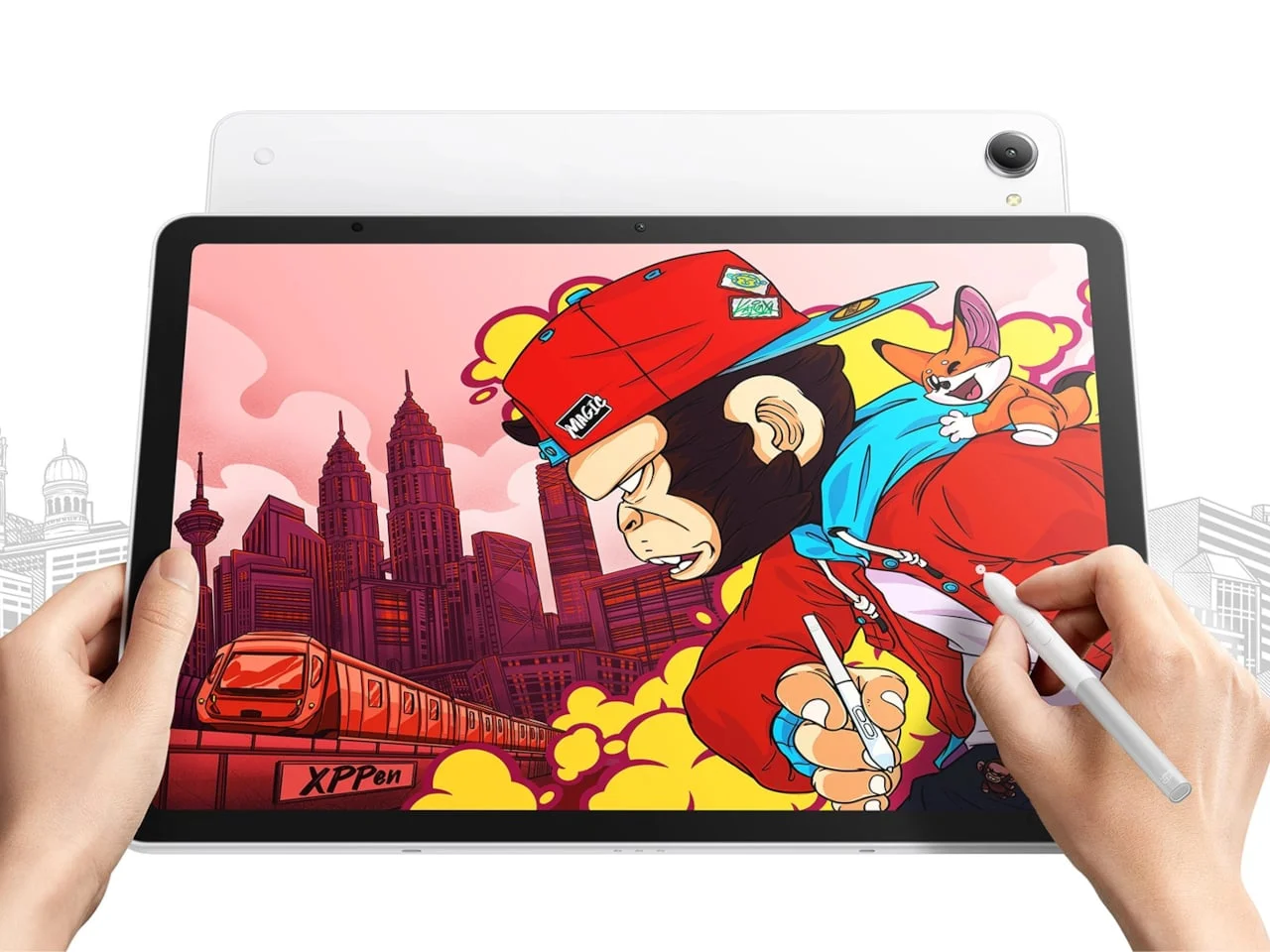
XPPen’s 12.95-inch Magic Pro 13 runs Android on its own and connects to a computer as a pen display, with a US preorder price of $899.99.
A tablet built to change roles
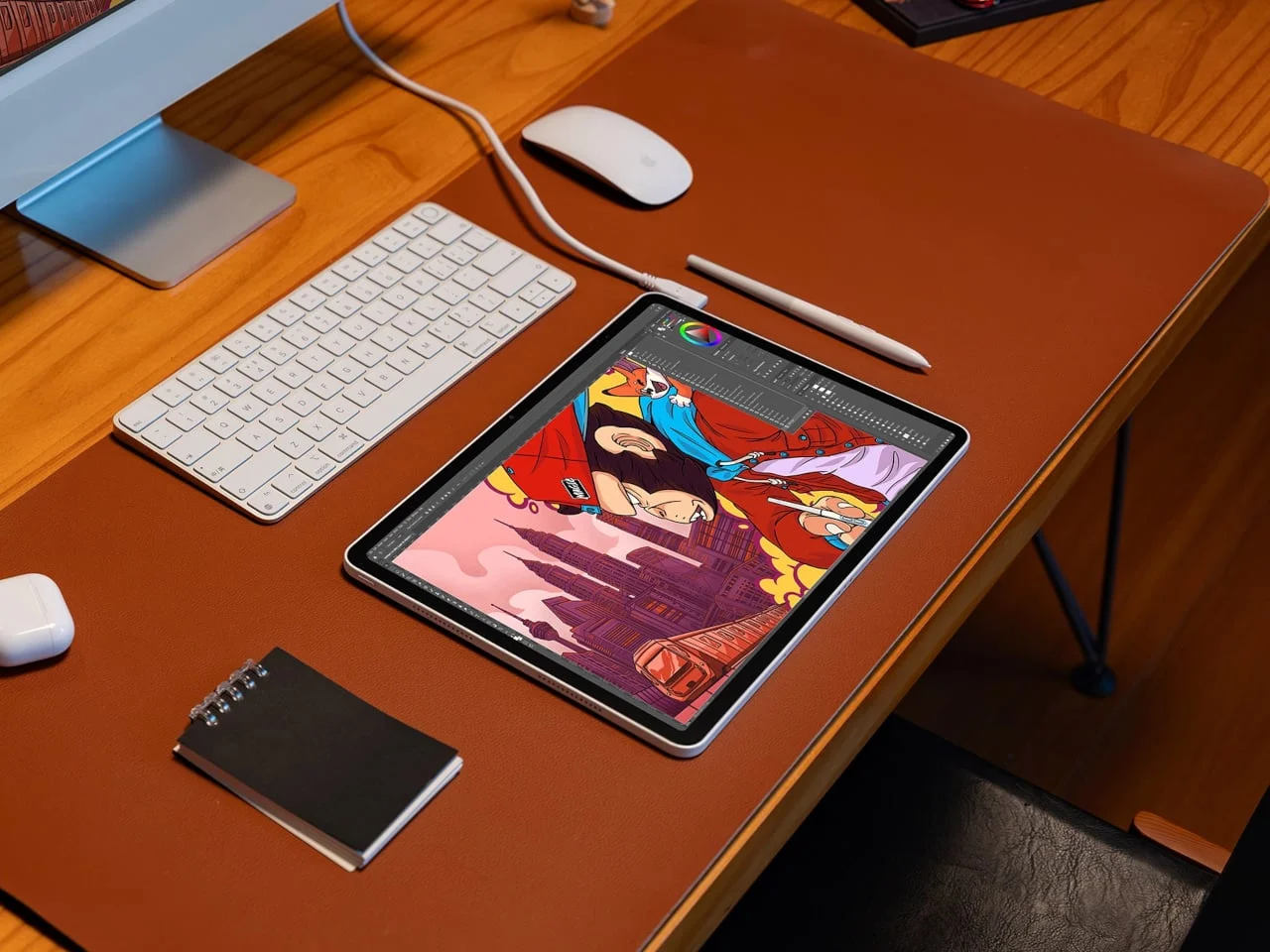
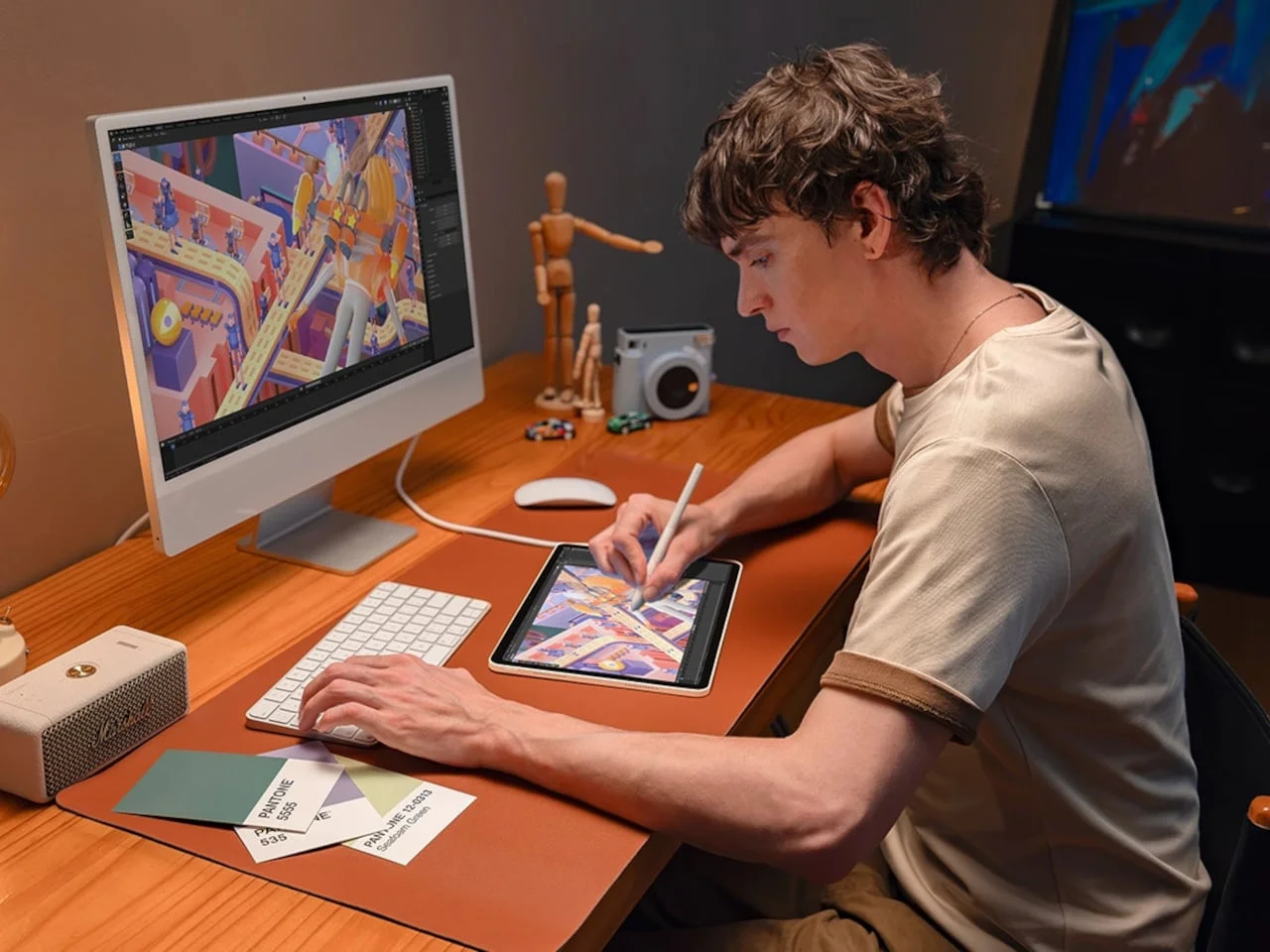
The Magic Pro 13’s pitch is unusually practical: one drawing surface can travel as an Android tablet, then connect to a computer and work as a pen display. For artists who move between sketching away from a desk and using desktop software, that means keeping the same screen and stylus in both setups. XPPen’s device received Yanko Design’s Best of IFA 2026.
That flexibility speaks to a familiar trade-off in digital art hardware. A standalone tablet offers mobility, while a pen display can put desktop applications and workflows within reach; buying and carrying both can mean switching between different surfaces and controls. The Magic Pro 13 tries to reduce that split by combining the two roles, though the value depends on whether an artist regularly uses both modes. One device, two working contexts.
The hardware keeps a low-key profile, with a pale rear panel, silver-colored edges and no prominent shortcut-key rows on the front. At about 0.26 inches thick, it’s slim; its 1.44-pound weight still makes a stand or other support useful for longer drawing sessions. Those dimensions suggest portability, but the weight is a reminder that “take it anywhere” and “draw comfortably for hours” aren’t the same promise. A suitable support could be part of the setup rather than an optional extra.
Designer: XPPen
A textured screen and responsive stylus
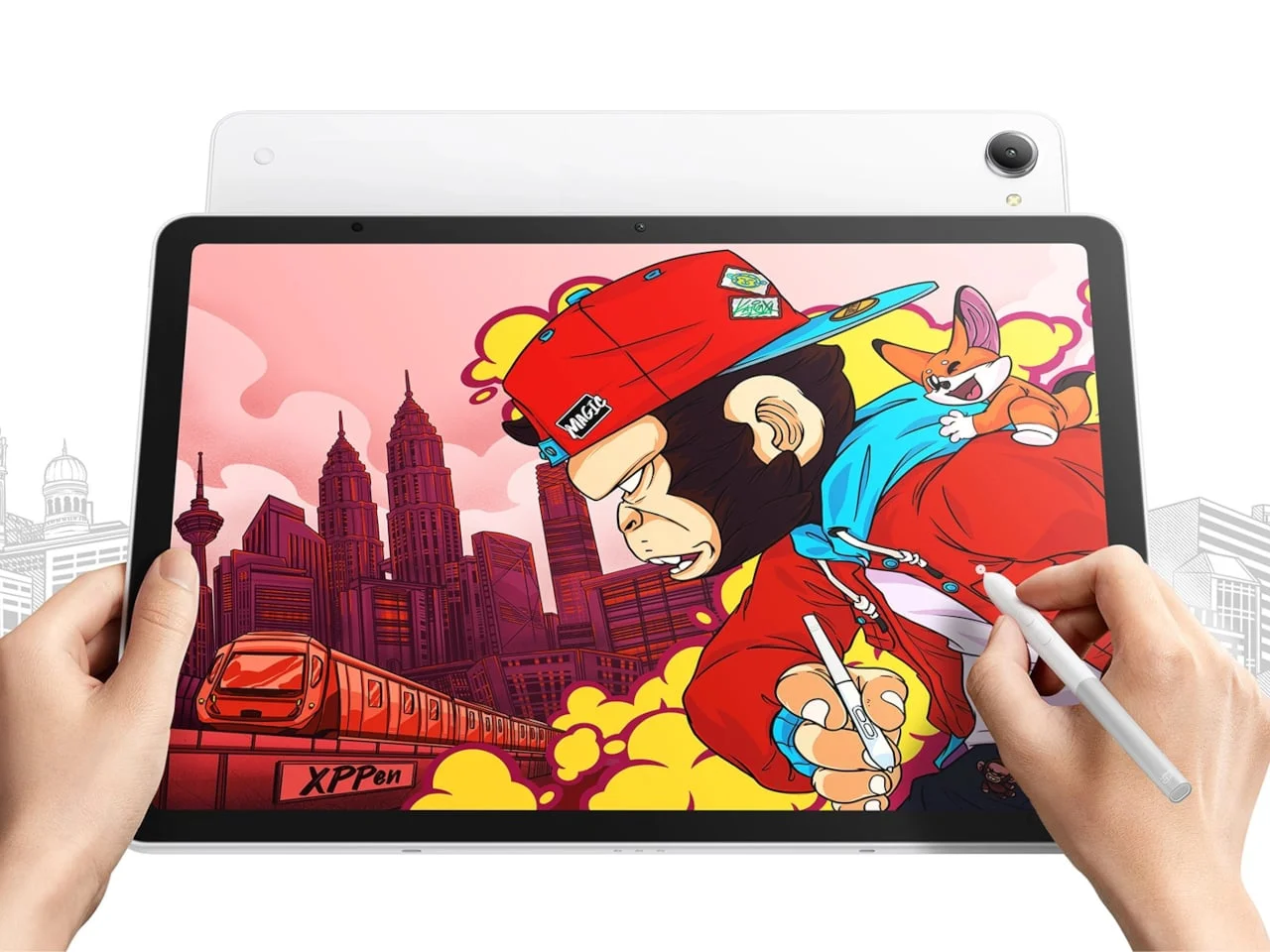
The 12.95-inch LCD has a 3096×2064 resolution and a refresh rate of up to 120Hz. For drawing, the surface treatment may matter more than that refresh ceiling: nano-etched glass, combined with anti-glare and anti-fingerprint coatings, is intended to cut reflections and add a paper-like feel. A higher refresh rate can make motion and pen feedback appear smoother, but it doesn’t by itself determine whether the surface feels right for a particular hand or technique.
The nano-etched finish is therefore doing practical work, not just adding a spec-sheet talking point. Reflections can interrupt close visual work, while a slick glass surface can feel unlike paper to artists accustomed to more friction. The coatings and texture aim to address both issues, though the description alone can’t establish how the surface will feel across different nibs, pressure habits, or drawing environments. That’s a hands-on question.
XPPen includes an X4 Smart Chip Stylus with 16,384 pressure levels and 60° tilt support. Compatible brushes can use pressure and pen angle to shape strokes. The stylus also has customizable barrel buttons, and the package includes felt and plastic replacement nibs for different contact on the textured glass.
Those controls matter most when the software responds to them. Pressure can affect line weight or opacity, while tilt can influence the shape of a stroke in brushes designed for that input; the available range gives artists room to tune behavior, but doesn’t guarantee every app will use it. The replaceable nibs offer another way to adjust the drawing feel. If you're working in this space, app compatibility and the surface’s actual friction will likely matter more day to day than the largest number on the stylus spec sheet.

Two USB-C ports, two different jobs
A physical control disables finger input, which helps prevent accidental touches when a hand rests on the screen. That small hardware choice addresses a routine annoyance in pen work: the screen has to distinguish drawing input from a palm or fingertip resting nearby. It’s a simple intervention, and one that can make long sessions less dependent on software settings or careful hand placement.
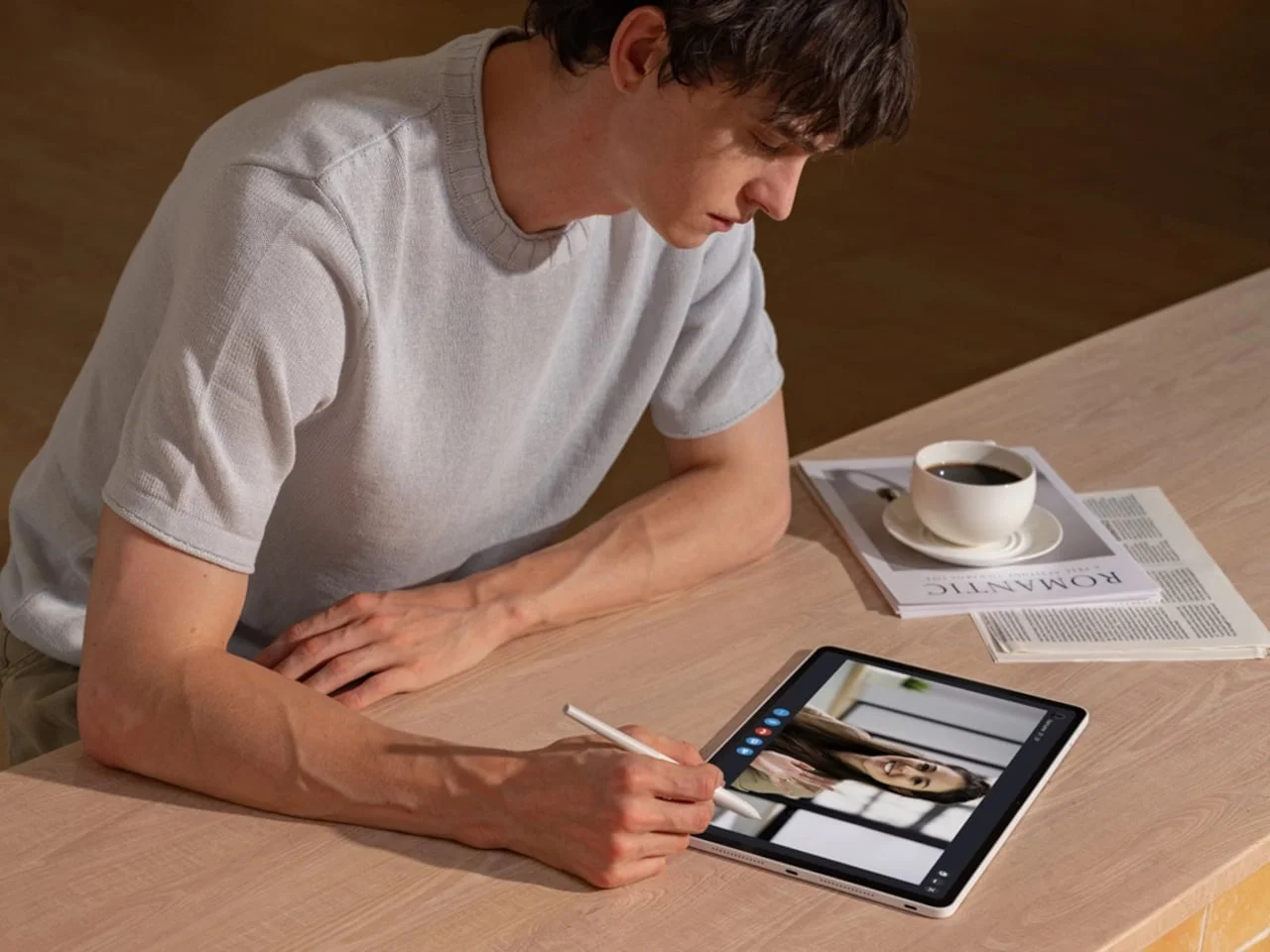
On the software side, Canvas is for quick sketches, while Shelf stores reference material with tags and annotations. Supported apps can run in resizable windows, keeping references visible alongside the drawing canvas. The arrangement points toward a tablet workflow that combines making and looking, rather than treating references as something that must stay on another device. How useful that is will depend on the apps an artist already uses and how well their working files fit the tablet environment.
Port selection determines how the Magic Pro 13 fits into a larger setup. The dedicated DP-IN USB-C port connects a computer and turns the tablet into a pen display for desktop applications. The second USB-C port sends the tablet’s Android screen to an external monitor. The connectors look alike, so their distinct roles are worth keeping in mind.
That distinction is easy to overlook because the ports share the same physical format, yet they serve different directions of travel: one brings a computer’s picture to the tablet, while the other sends Android output to a monitor. The DP-IN connection is what makes the device a companion to desktop software, rather than merely an Android tablet with an external display option. Clear labeling and cable habits may matter here. Two ports, two workflows.
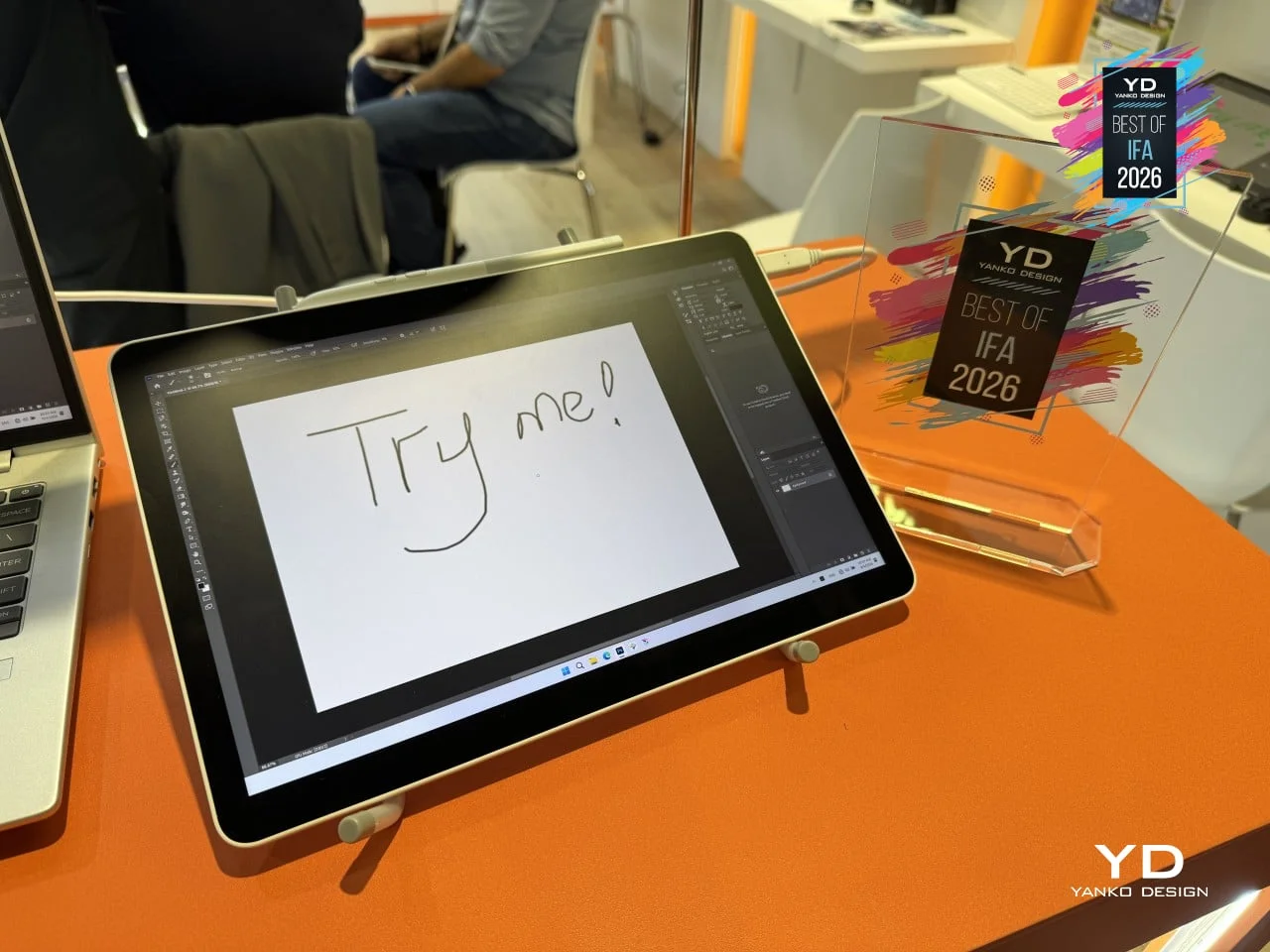
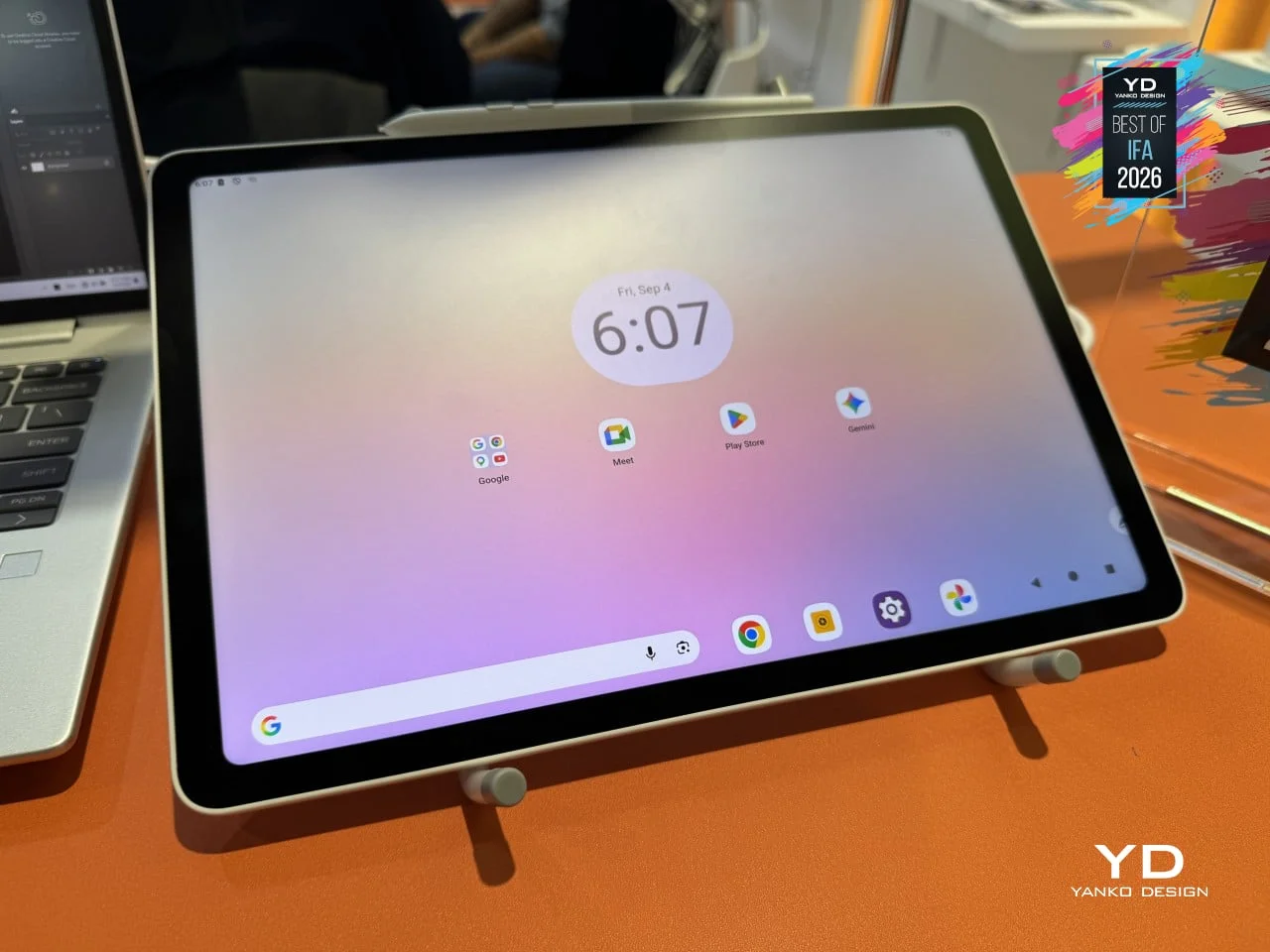
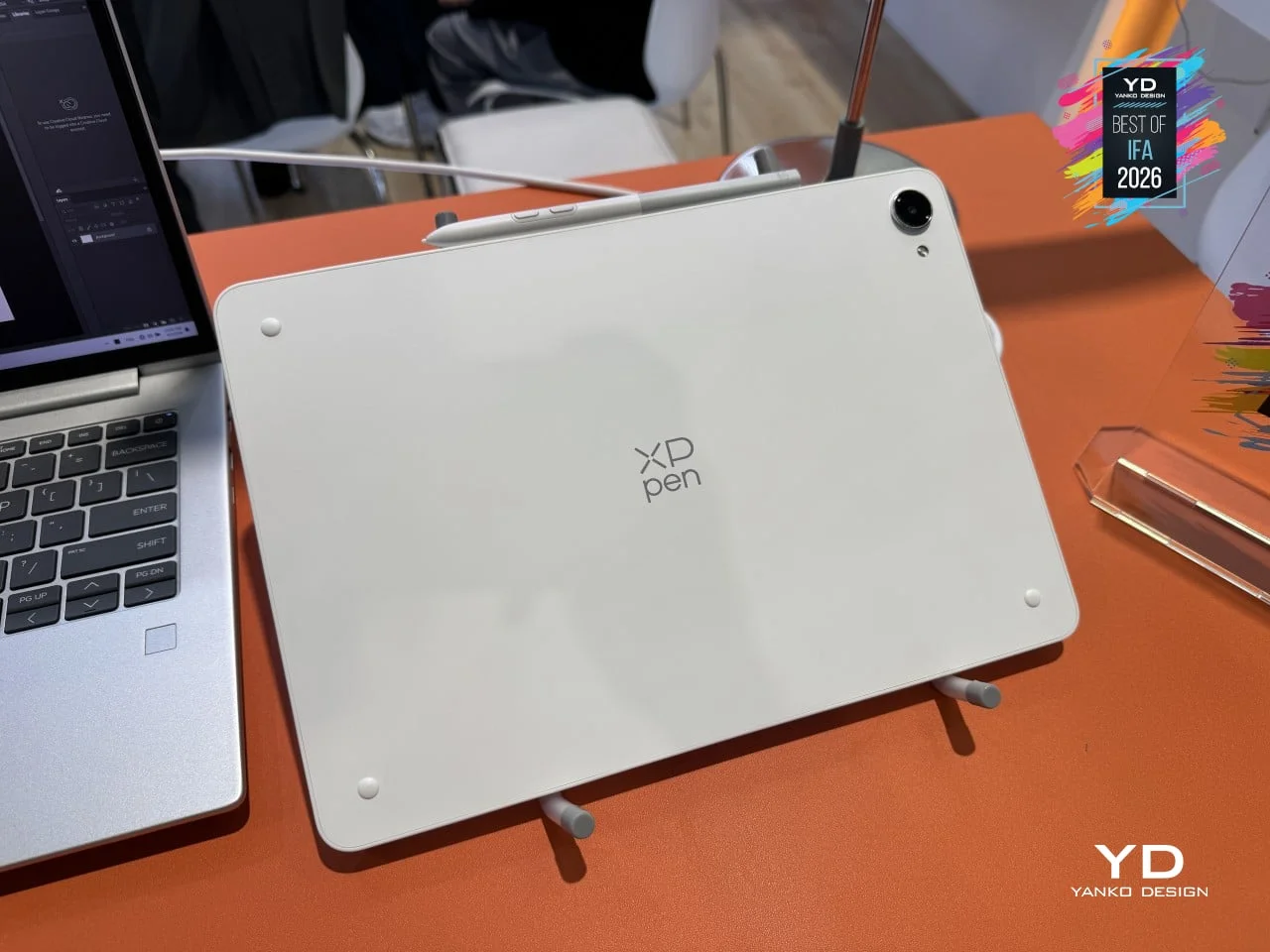
Android 16 runs on a MediaTek Dimensity 8300 processor, backed by 8GB of RAM and 256GB of expandable storage. A 10,200mAh battery supports portable use, and either USB-C port can provide 45W charging. That gives the tablet a way to charge while its other connection is occupied by a display.
The listed memory and storage give the standalone mode a defined base, while expandable storage leaves room to add capacity for files and references. The battery figure points to mobile use, but actual endurance will vary with screen brightness, apps, and workload; the source details don’t establish a runtime. Charging through either port offers flexibility when one connection is already serving a display. That’s useful in principle, though artists will still need to plan around power during longer sessions.
Premium pricing for a flexible setup
The Magic Pro 13 is listed for US preorder at $899.99, with shipping estimated for November 13, 2026. That price puts the value question on the device’s dual role: it can handle Android drawing on the go, then serve as a computer-connected pen display at a desk. The key appeal is continuity across those setups, with the same screen and drawing tools following the artist from one to the other.
This is more significant than it looks for artists who regularly switch locations, because familiar controls and a consistent drawing surface can reduce the small adjustments that come with changing devices. But the asking price makes the second role essential to the case. If you’d use it mostly as a standalone Android tablet, the pen-display connection may not justify paying for a capability that rarely enters your workflow. If desktop work is part of the routine, the combination becomes easier to assess against carrying separate equipment.
The listing gives a preorder price and an estimated shipping date, but those details don’t answer questions about sustained drawing comfort, app behavior, or how the screen texture feels in practice. Buyers weighing the device will need to consider those factors alongside the specifications. The numbers here are underwhelming as a complete account of the experience: they describe the hardware, but not whether the two modes feel equally well considered.
What the dual mode means for artists
The Magic Pro 13’s strongest idea is continuity. A tablet that can also act as a pen display may simplify a mobile-to-desktop routine, especially for people who want to keep references, drawing habits, and stylus settings close at hand. The design also makes clear that flexibility comes with practical questions: support for longer sessions, the right cable and port, and the apps that matter to each artist.
And yet. A device’s versatility only earns its keep when both modes work well enough to become part of someone’s regular practice. The Magic Pro 13 has a credible feature set for that pitch, from its textured display to its separate USB-C roles, but the source material doesn’t establish how those features perform together over time. What this means for you is straightforward: judge it by the workflow you’d actually use, not by the number of roles it claims to fill.


The post XPPen’s Magic Pro 13 Switches From Standalone Tablet to Desktop Pen Display first appeared on Yanko Design.



Discussion
Sign in to join the discussion.